
Connect the mobile app to your logbook
Create an API token on the web, enter it in the iPhone or Android app, and keep both copies of your logbook in step.
The Divebase mobile app is a logbook of its own. It works offline, and it downloads dives straight from your dive computer. Sync joins it to the logbook on the web: a dive you log on the boat appears on the web app, and a dive site you write up at your desk appears on the phone.
The two are joined by an API token. You create the token on the web app, you enter it once in the mobile app, and the app keeps it in the safest store the phone has. This guide shows every step.
Before you start
- A Divebase account. The mobile app does not create one.
- The Divebase app on your phone. Sync works the same on iPhone and on Android.
- Two minutes, and both devices to hand.
Step 1. Create an API token
Sign in to the web app and open Settings, then the API tokens tab.
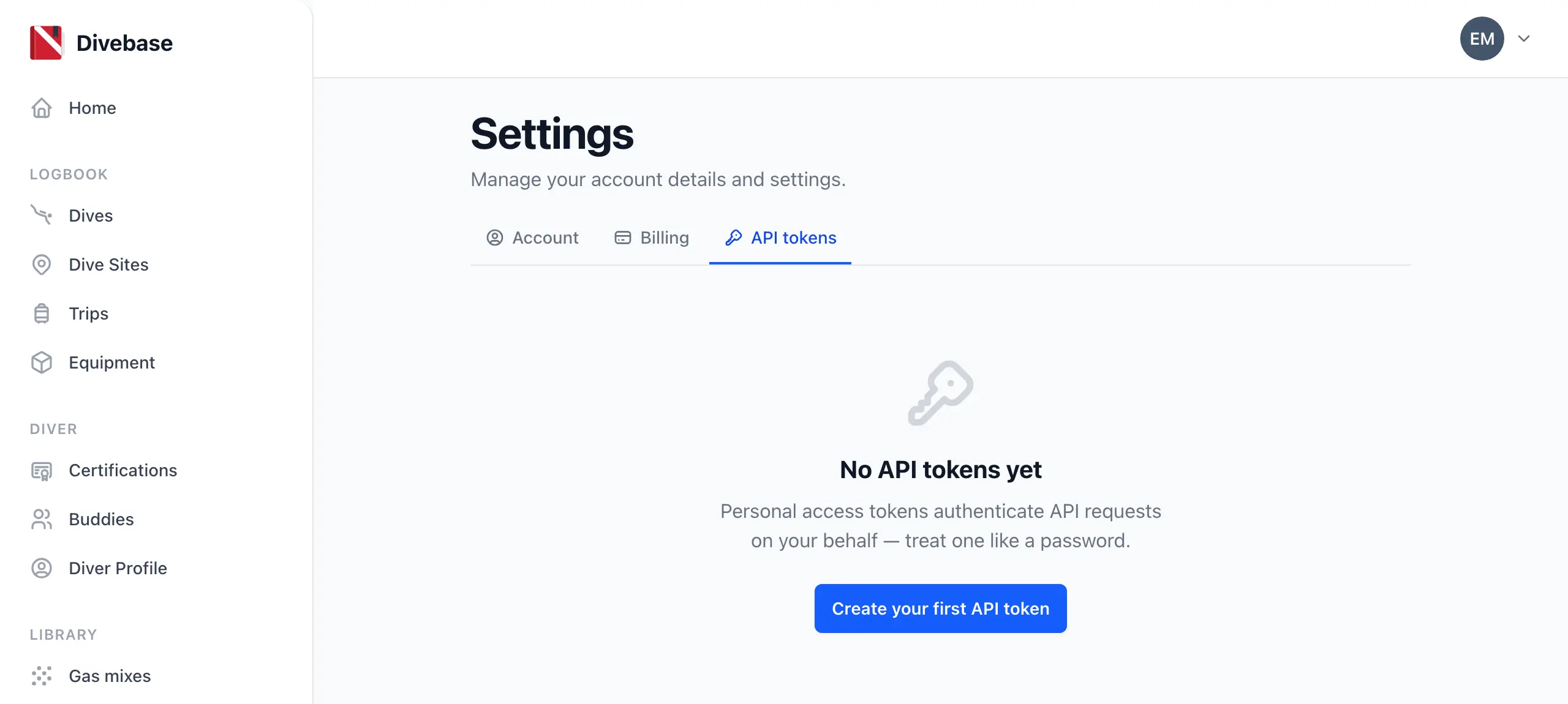
Select Create your first API token. The button reads New token if you have made one before.
Give the token a name that tells you which device holds it, such as "iPhone" or "Pixel". The name is for you: it has no part in the connection, and you can change it later.
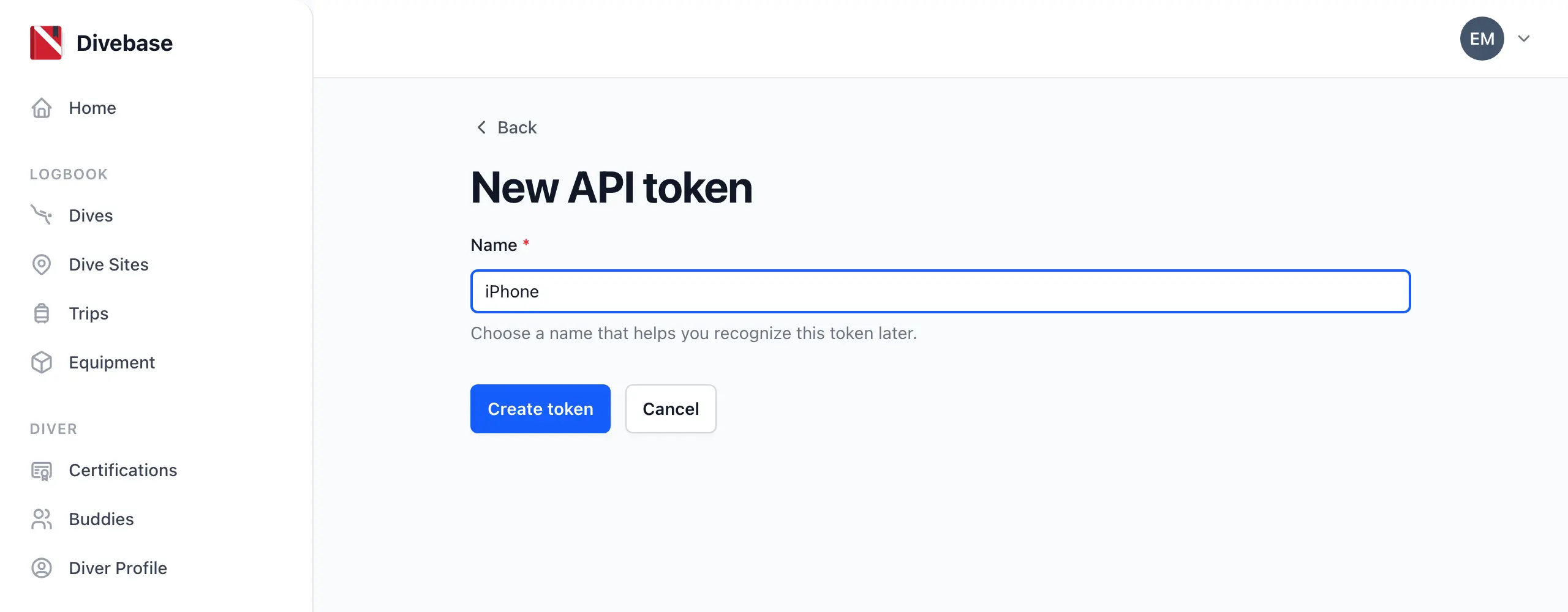
Select Create token. Divebase shows the token once, and never again.
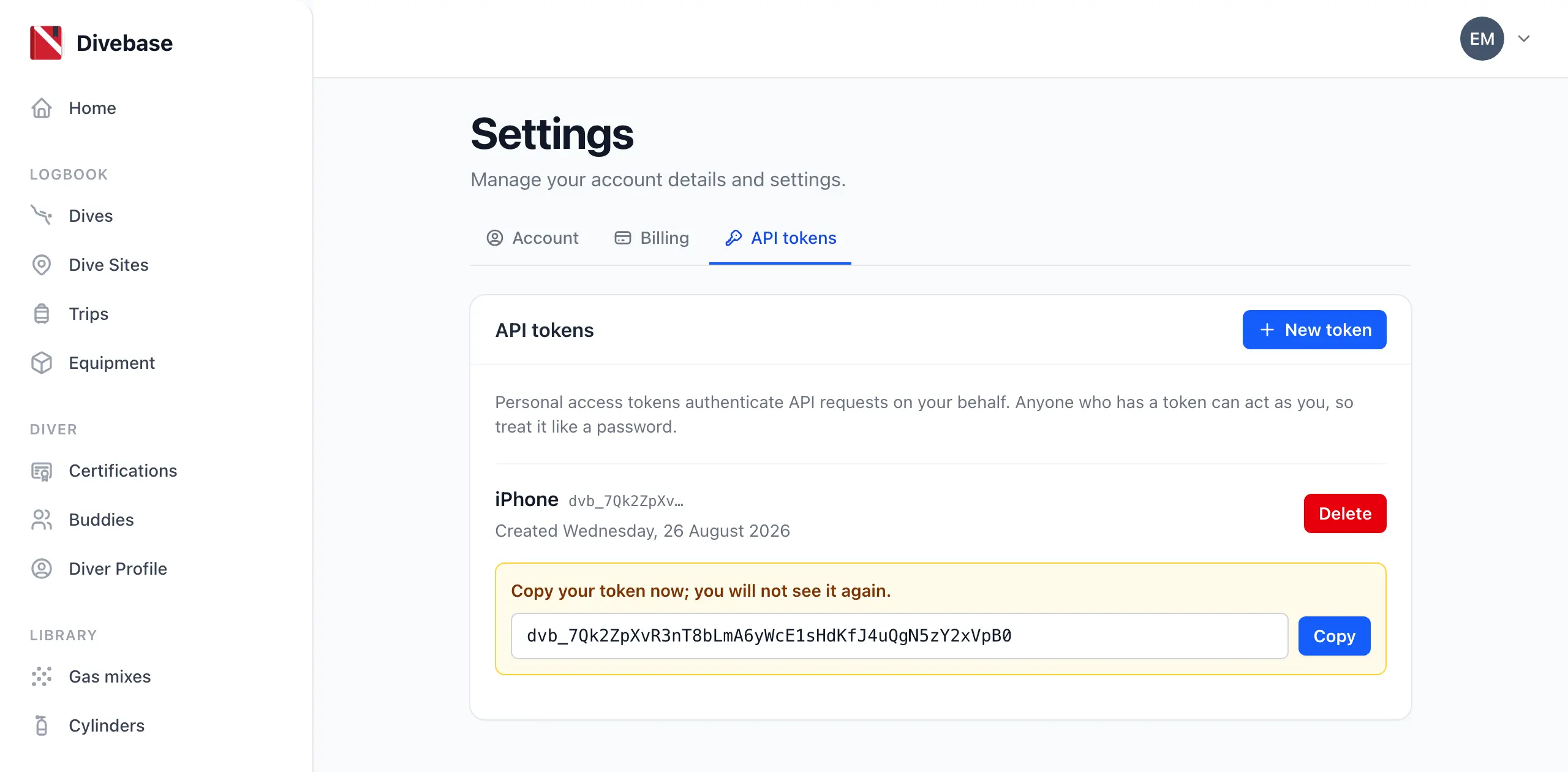
Select Copy. Keep the token on the clipboard, or paste it somewhere safe until you reach step 2. If you lose it, delete the token and create another one; there is nothing to recover.
A token is a password. Anyone who holds it can read and write your logbook, so do not post it or send it to anybody.
Step 2. Enter the token in the app
Open the app on your phone. Go to the More tab and select Account & Sync. It is the first entry.
Paste the token into the API token field and select Connect.
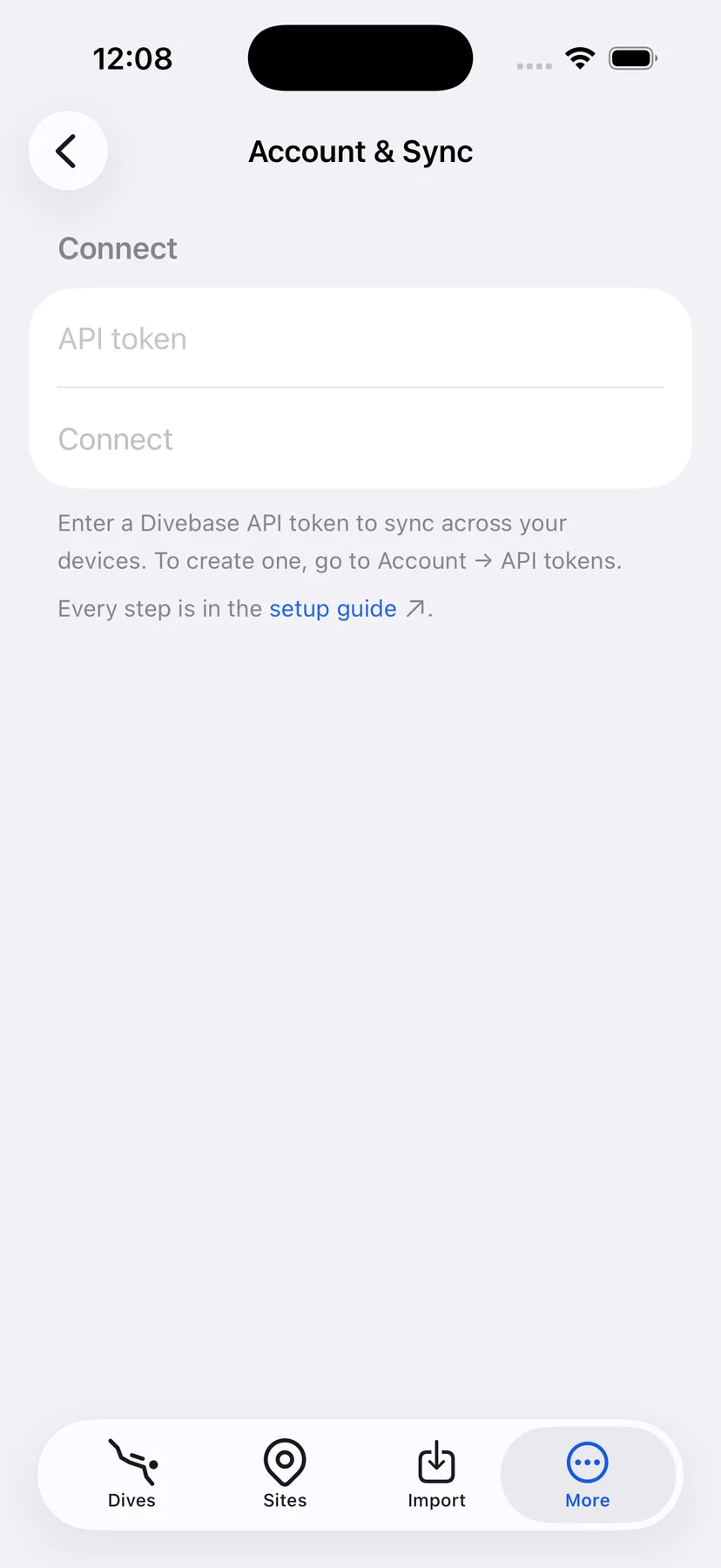
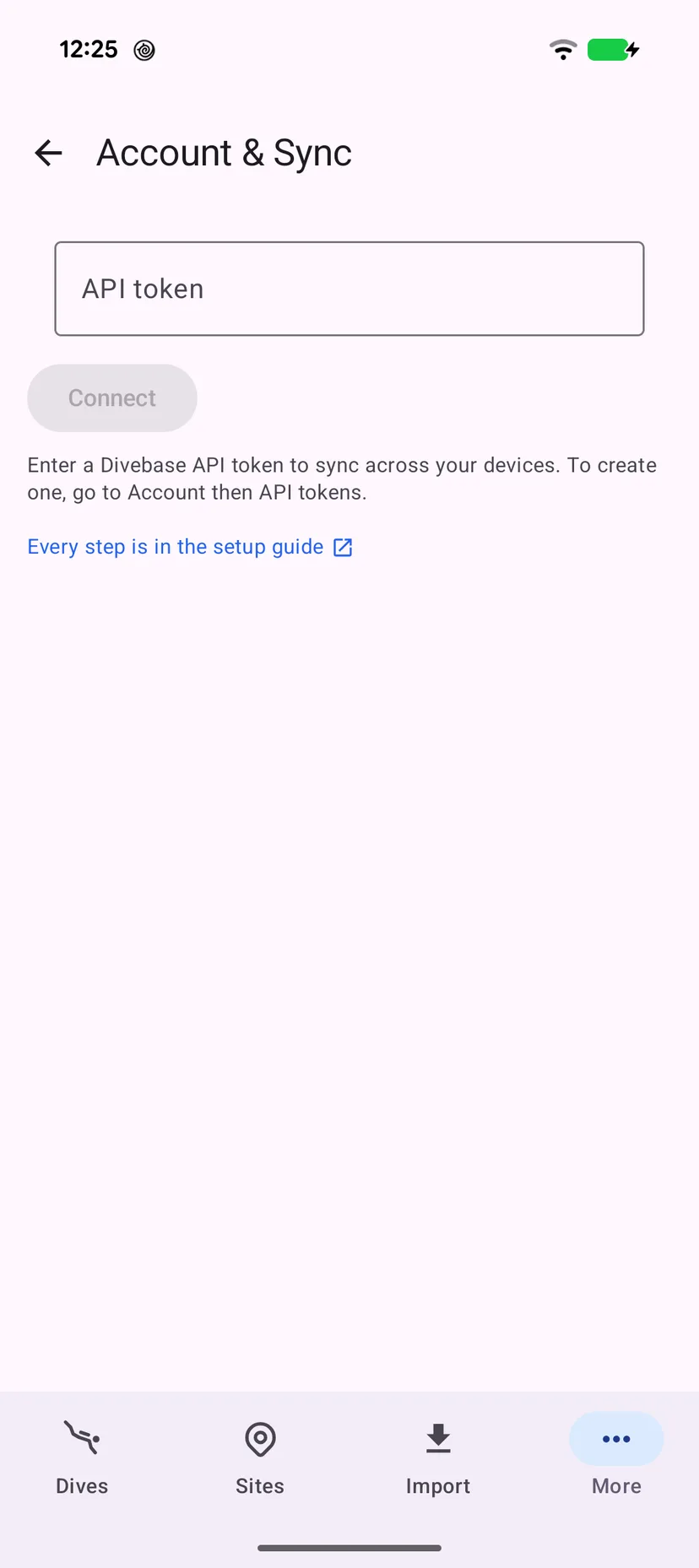
The app checks the token with Divebase and stores it in the safest store the phone has. Your email address appears at the top of the screen when the connection stands.
Step 3. Watch the first sync
The first sync brings down everything your account holds, so it takes longer than the ones that follow. A large logbook can take a few minutes.
The Sync section reports what is happening:
- Sync now starts a sync when you ask for one.
- Status reads Up to date while nothing is running, and Syncing while a cycle runs.
- Last synced is the time the last cycle finished.
- Records compares the two copies. It reads Match when they agree.
- Sync on Open syncs each time you open the app. Turn it off if you would rather sync by hand.
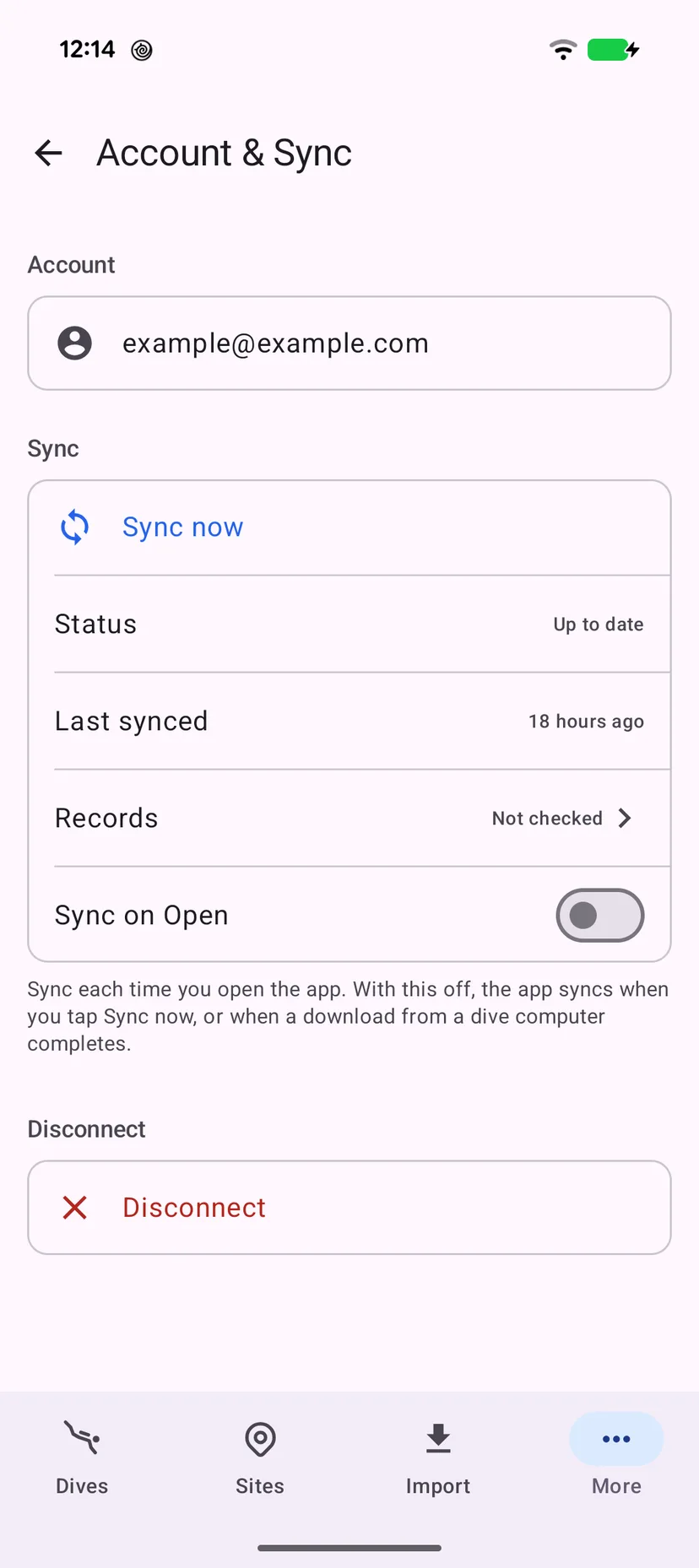
The app also syncs after a download from a dive computer finishes, so a dive you take off your computer on the boat reaches the web app before you are dry.
What syncs
Your dives, dive sites, cylinders, gas mixes, the gas records on a dive, and your certifications. A dive carries its depth profile with it.
Every device works on the same records. A change you make on the phone reaches the web app, and a change you make on the web app reaches the phone; the most recent change to a record wins.
If something goes wrong
That token was not accepted. The token is wrong, or it was deleted on the web app. Check that you pasted all of it, with no space at either end. Create a new token if you are not sure.
Could not reach Divebase. The phone has no route to the server. Check the connection and try again. The app keeps your dives either way, and it syncs them when the connection returns.
Your session expired. Reconnect to keep syncing. The token stopped working, which happens when it is deleted on the web app. Create a new token and enter it. Nothing on the phone is lost.
Records do not match. Open Records to see what each side holds. The screen offers two repairs:
- Push local data to Divebase sends everything on the phone up, not only what changed. Use it when the phone holds the copy you trust.
- Replace local data with Divebase data replaces the copy on the phone with the copy on Divebase. Anything the phone holds that Divebase does not know about is removed from the phone. Use it when the web app holds the copy you trust.
Disconnect a device
Disconnect on the Account & Sync screen removes the token from the phone and stops sync. Nothing is deleted on Divebase. The app asks what happens to the copy on the phone, and keeping it is the safe answer.
To stop a device from the web side, delete its token in Settings, then API tokens. The device reports that it needs to reconnect at its next sync. This is what to do if you lose the phone.